Showing posts with label Tips and Tricks. Show all posts
Resume Interrupted Download in Linux

Hello Everyone, It may happened with you that you are downloading any File from any down loader and Download Get Interrupted on 60% or more, well its too Frustrating if it can't be resumed, most of the Windows User Uses IDM to download, but if you are a Linux User, you Do not Need Third Party Download Client to download Data, Linux came with Built in Command wget which will fetch the data from the server and download it to your present working Directory (pwd) , to download any file from the server open the terminal ( Ctrl + Alt + T)

type wget "Link of Website to Fetch Data"

example :- if you are downloading ubuntu 13.04 64 Bit
 wget http://ftp.ticklers.org/releases.ubuntu.org/releases//raring/ubuntu-13.04-desktop-amd64.iso

and If it get Interrupted, you can Resume it by using the Command

wget -c "Link of Website to Fetch Data"
i.e,

wget -c http://ftp.ticklers.org/releases.ubuntu.org/releases//raring/ubuntu-13.04-desktop-amd64.iso


Your Download will Start from where you Left previous Download
Its being a Long Time that I posted on My Blog , Hello Freinds Welcome Back ..
Today We will Learn How to  Enable/Disable Write Protection mode in SD memory card it can be easily done by following certain simple steps

Method 1 :-  Check The Switch

SD Cards have a physical switch on the side of them which sets the write protection of the card. If the write protect switch is in the locked position, then it will not be possible to write to the card. It will, however, be possible to read the photographs from the card if they are already there.

Mini and Micro SD cards do not feature a switch, however, when they are placed in the SD card adaptor to fit into your computer, there is a lock switch. Some people mistakenly believe that this is to lock the card in position, however, this is actually a write protect switch. When using the adapter, you shouldn't touch the switch.
This is how it look like


Toggle the yellow switch to lock or unlock the card

Method 2 :-

In this method you need to open Command Prompt in Windows and in the cmd type the following commands.

1st :- diskpart
2nd:- list disk
3rd:- select disk 1 ( Your Memory card or Pendrive)
4th:- attributes disk clear readonly

/* This will disable the write protection mode */
If you want to Enable write protection use

attributes disk set readonly

Net Banking Security Tips

Net banking is the current Mode of Transaction which all of us use. But as online scams , fraud are rapidly Increasing day by day , So to Secure yourself from the net banking theft follow these Simple tips:

Type your internet banking URL

Always access our internet banking by typing the correct URL (ex:- https://www.unionbankonline.com) into your browser. Never click on a link in an email to take you to a website, or enter personal details either in the email or website.

Password and PIN security

You should always be wary if you receive unsolicited emails or calls asking you to disclose any personal details or card numbers. This information should be kept secret at all times. Be cautious about disclosing personal information to individuals you do not know.

Please remember that we will never contact you directly to ask you to disclose your PIN or your full password information.


If it sounds too good to be true...

It probably is. Don't be conned by convincing emails offering you the chance to make some easy money. As with most things, if it looks too good to be true, it probably is. Be cautious of unsolicited emails from overseas - it is much harder to prove legitimacy of the organisations behind the emails.


Contact Bank Administrator

If your bank deducts uncertain amount of balance without letting you know, then complaint the bank administrator regarding amount deduction. 


PC security

It is important to use up-to-date anti-virus software and a personal firewall. If your computer uses Microsoft Windows, it is important to keep it updated via the Windows Update feature, equally if you use another operating system you should check regularly for updates. You should be vigilant if you use internet cafes or a computer that is not your own and over which you have no control.
You can also Check Further PC Security Tips 


Keep your identity private offline

Your identity can be as easily stolen offline as it can online. It is important that you comply with instructions about destroying new PIN numbers and expired bank cards.

You should also consider using a crosscut shredder to destroy bank and other statements that may contain sensitive personal information. It is advisable to store retained documents in a suitable locked and fireproof container.


Check your statements

It is important to check your statements regularly; a quick check will help identify any erroneous or criminal transactions that might have been performed on your account without your knowledge.


Check your banking session is secure

When undertaking any banking on the internet, check that the session is secure. There are two simple indicators that will tell you if your session is secure. The first is the use of https:// in the URL. Some browsers such as Mozilla Firefox change the colour of the url window when you are in a secure session. The other indicator is the presence of a digital certificate represented by a padlock or key in the bottom right hand corner. If you double click on this icon it should provide you with information about the organisation with which you have entered in to a secure session.


Check for spyware

In addition to being protected by using up-to-date antivirus software you should also regularly use software to remove spyware from you computer, as these programs record information about your internet use and transmit it without your permission. In some circumstances this can compromise your PC security.


Ensure you log off properly

It is important to completely log off from your internet banking session; simply closing the window you performed the transaction in may not close the banking session. If your computer is infected with a Trojan, your session may become hijacked by a criminal and financial transactions may be performed without your knowledge. It is also advisable to disconnect from the internet if you are not planning to use it.

These are The Simple But useful net banking Security Tips which you can follow to Secure your Money.

How Hackers Take Control of Your Computer?


Most of the People Didn't Focus on Security issue, they aren't serious from the fact that they are vulnerable to Internet hacks. I am Talking about the new age criminals called "Crackers" who can crack your PC and Steal all the data you have on your PC including your Browser Cookies which stores your Browser history and all the other important Secret Files and Documents that you Save on your Drive.


Your PC has many “ports” which are vulnerable to attack from a hacker. These ports are used to communicate internally with your monitor or printer or externally to the internet. For example, Port 25 is used for receiving incoming email and Port 80 is used to connect to the internet.

In addition you have a unique IP number which is assigned to your computer by your Internet Service Provide which is required for you to use the internet. This is how you send and receive information. It also serves as your computer’s “address”. The IP number looks like this – 106.185.21.243 .

If you have a broadband or DSL connection your IP address rarely changes which make your computer more vulnerable. If you connect to the internet via dial up then you typically are assigned a new IP address every time you log on, but this doesn’t been you are not vulnerable to attack!

Another issue is that with broadband connection you are likely to be on line for longer periods of time giving hackers more opportunity to attack you.
Hackers use “port scanning” software to hunt for for vulnerable computers with open ports using your computer’s IP address. They will then send malicious programs through these open ports onto your computer.
Another common way that hackers use to gain control of your computers is by sending out Trojan Viruses disguised as email attachments. Hackers typically send out these messages to 1000s of users with enticing headings and an attachment which they are hoping you will open. When the attachment is opened the virus loads itself onto your computer and allows the hacker to control your computer.

Hackers also bundle Trojan viruses into free downloads like screensavers which are commonly installed on home user’s machines. Illegal P2P networks also circulated large numbers of infected files.

Here are some steps you can take:


1) Make sure you are receiving a week or after being on line for a long period of time.

2) Install an anti virus program and keep the virus definitions up to date. Carry out a virus scan a least once a week.

3) Use a Spam Filter to stop dangerous email.

Further actions you can take:
-
Don’t open suspicious looking email messages especially if they have attachments.
Be careful what free software you download.
Remember to switch off your broadband connection if you are away from your computer for a long period of time. 
Get into the habit of switching your computer and broadband connection off at night time. This is especially relevant for wireless network users.

How to Know Whether My PC is Hacked or Not ?

How to Check My computer is Hacked or Not ?

A simple check that will help you to identify that your computer is hacked or not....without installation of any software...

Go through the following steps

If you are a dial up user then you use a modem either internal or external kind to get online. If you have an external modem then this tip is easy. If you look at the modem you’ll see lights on the front of it. When you’re doing anything on the net you’ll notice lights blinking that indicate that you are Sending Data, and Receiving
Data. Depending on how often the lights blink and how fast they blink gives a rough idea of how much activity is going on between your computer and the net. Here’s where a little perception comes into play. If you are
connected to the internet, and are just sitting by your system doing absolutely nothing, those lights have no business to be blinking rapidly. They will flash periodically indicating it’s checking it’s connectivity, however there should be no heavy data transfer of any kind if you are not doing anything on the net.

For Example: If you have your email program open and you are just sitting there reading your mail, you may notice that every 15 sometimes 20 mins that the lights will blink back and forth indicating it’s sending and receiving data. This is normal because chances are you have your email program configured to check
your mail every 20 mins. If by chance you notice the lights on your modem is blinking consistently for let’s say a period of 2mins non stop be extremely suspicious. If you have an internal modem, you will not be able to see the
lights on your modem, instead you can rely on the two tv looking icons at the bottom right corner of your screen near the clock. Any data being sent and received will be noticed by the blinking of the lights rapidly.

Now ,How do you know what’s going on?

Let’s do a short exercise.

• Click Start
• Go to Run (Click Run)
• Type Command
• Click OK

Once you have this screen type the following:

• Netstat –a


This command will give you a listing of everything your computer is communicating with online currently. The list you get will look something like this:

How to Check whether my computer is hacked or Not

You’ll see a variety of listings like the above. It will give you the Protocal being used, the local address (your computer) and what port on your computer the “Foreign Address” is being connected to and the (State) of which the (Foreign Address) is. For example if it is (Established) then that means whatever the foreign address says is currently connected to your machine.

Now if you ever have any doubt regarding the computer is being hacked or not..You can easily Identify......

so it necessary for you to pay attention to such types of things.

LOCK YOUR COMPUTER WITH PENDRIVE 

Lock your Computer with Pendrive

Hello Everybody, Computer Security is indeed to be issue of concern ,which affect not only the people of Board room across the globe but also for the common users, who uses the computer just for entertainment and for educational purposes , However Privacy remains constant either you are using for entertainment or for an educational purposes, 

Most of the software's are available on the internet which can lock  your drive ( eg. Bitlocker) or folder to save your data from our close ones. But today I am sharing one of the software which can lock your whole PC with Pendrive, It can make your Pendrive as a Key to lock and reopen the PC for further use.

Download the PREDATOR software which can lock your computer, and it will lock until the PD is reinserted.

If you removed USB from computer , Mouse and Key board will get disabled automatically and screen will get dark. To unlock the computer, you should insert the USB again.

Download the PREDATOR

Now install the software.

Predator will launch automatically after the installation.

Now insert USB to the computer
you will get a message to set new password.
click on OK and set your New password
Then Choose the correct Drive letter from "USB Key Drive"


Thanks for Visiting 


How to Host your web page on the Google 


How to Host  web page on Google for free
Since Google is the number one search engine , so most of us depend on the Google even we have to search silly things on it, Google have gained the faith from all the Millions of Internet User,day by day Google is updating itself by adding useful applications in it, One of the most important application developed by Google is Google Drive. It Provide free Storage space of about 5 GB for gmail users to upload and keep there useful file safe on the internet.
When you create your HTML/CSS/JavaScript files you need to purchase hosting space to host it on the server..But now if you want to test your file you can easily host your file on the Google drive.Follow the simple below steps and upload your webpage on the Google.

Step 1:-

 Login to the Google Drive ( if you don't have g mail account, Create a new account first)

Step 2:-

 Create a new folder of your name ( Ex. cyberaditya)
create a new folder of your name

Step 3:-

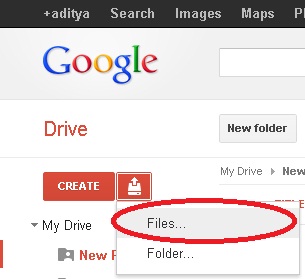
 upload your .html file on the folder

Select files and upload it

search your file and click Open

Step 4:-

Select preview button
Select preview button 

Step 5:-

Congrats ! your file is hosted successfully.

your hosted file
Thanks for Visiting.


Points to consider before buying a new laptop

Are you planning to buy laptop ? If yes, then this post is helpful for you.
Follow these below simple 5 points.

1) Brand :-

 Most of people believe , that in this cyber world only brand matters just like Apple, Dell etc., It become a status symbol for all the people. But believe me.. Brands.. matter only in "Show off" if you're interested in buying laptop for developing purpose which means if you want to develop Applications in it just like android, windows or any other web applications,just Concentrate on the laptop configuration rather looking for a brand, if your favorite brand satisfies your need ( just like a case DELL for me ) then go for it.
Good Brands also provides better services.

2) Processor :- 

As mentioned earlier, if you are looking to develop applications on your laptop. then processor performance matters a lot for you. Just in case of me, I use to Develop web application from Netbeans and from other IDE, Which consumes or require high processing speed to run without faults.
Unless you're running intensive, threaded applications with regularity, you don't need a quad-core processor and will get more than enough oomph from a current dual-core CPU. We recommend mainstream buyers look for Intel's Core i3 or i5 processors. if you can afford look for i7 processor.

3) Ideal Configuration :- 

Core i3 3rd GEN / 4GB RAM / 500 GB HDD / 15.6" HD LED screen / Intel HD graphic card / 
These are basic Ideal Configuration for me, I know most of the readers will look for more upgraded configuration but more upgraded configuration will also cost more money.
you should look for the configuration that can be updated as per need.

4) Graphics matter (for gaming) :- 

With gaming laptops, spend more on the GPU than CPU.

5) Battery :- 

One of my Facebook Friend told me that his laptop is behaving like a heater. The Reason for this is its battery, So you should check about maximum support Laptop’s batter will give. Standard need is 10 hours or as per usage. Always buy genuine battery from dealer. Don't look for cheaper price because if you buy battery which is made in china, then go to china for repairing laptop :P 

These are the 5 important points that you should consider before buying a new laptop.
Thanks for visiting !

Points to Consider Before Designing a Web Site 

Points to consider before designing a website

If you want to Create a website than you must follow following points to gain better results.Many successful entrepreneurs and businesses have succeeded online using their websites as a powerful tool to promote their products and services. They can also challenge and outshine their competitors really well through it. Revenue is also good due to having a professional website. There are really great benefits of having a professional website. It can certainly bring your online business to the next level. No wonder most people opt to have one especially that people just stay for seconds on a website and would immediately leave it if they think it is not professional enough.
Having a professional website will not only give you more income but it will also help improve your online reputation, thus, getting the trust and confidence of most people to your brand. But how can you make your website look professional? Here are some key points to consider in designing a professional website.

1. First impressions is the last impression.

first impression is the last impression 


We all know how relevant first impressions are. It is always a big factor to keep readers and to attract new ones. If at first visit, your site doesn’t impress the readers, they won’t want to visit your site again. You don’t want to lose potential clients, so make sure your site looks professional. This is an important factor to retain your readers.

2. Easy navigation facility.

provide easy navigation facility 

Make sure that it is easy to navigate your page. Make it simple. Let your navigation encourage your readers to look at other parts of the website. It would be discouraging if your navigation are not well placed and the reader still has to look for it. They wouldn’t like it too if they won’t arrive to an informative page once they opt to see something. Highlight some pages by using a good navigation system.

3 Optimize load time.


Optimize load time

Your visitors would not stay long just to wait for your site to load. You will be wasting much bandwidth and it will also irritate impatient visitors. Remember that the recommended size for a web page is 40 to 60 K so that it won’t load too long. The faster your site loads the better.

4. Use the right color combinations for your website.

select right colors

Colors are one of the important features of a website. Choose the right color combinations that are not heavy to the eyes and that will make their reading easy. Also, consider color psychology. Meaning of colors is important especially for websites. You need to use the right color in order to avoid misinterpretations. Choose the proper color combinations so that it wouldn’t be a headache for readers. A site with a bad color combination will make it look cheap and unprofessional. Do not forget to use safe colors that will look the same in whatever browser.

5. Highlight your products and services.

A professional website can give emphasis to your products and services. Clients could easily see your products if you have a good layout. Use good images to showcase products and give enough information about it. Think of what your clients would like to know about a product or service and place all of them in your site.

6. Browser compatibility is must.

Browser compatibility 


You also have to make sure that your website will open no matter what browser is being used by the client. If you limit to selected browsers, you are losing many clients. Make it accessible to all people. You should also consider all your visitors in creating it.
Ads

7. Be Different from others.


Your website is professional if it is different from your competitors. Make sure that your readers will be able to distinguish your website from other’s site. This way, you will not only make your site memorable but it will also create a good identity for it. Branding is vital especially for business sites. Make a unique site so that you could establish your own online brand and reputation.

8. Use the right font for your website.


Use Right fonts


A professional website won’t use fancy fonts. It will make the site look terrible and will make it unprofessional. Your visitors will think that you are not serious about your site. There is even a great chance that they will not trust your site at all. So, use standard fonts that are easy to read. Also, make sure that you will use web safe fonts that can be readable anywhere.

9. Use professional graphics.

Choose your images. Do not just use any type of image. It should be of high quality and it should be appropriate for your site. Use only images when there is a need to. Also, make sure your images are of small file size so that it will load easily. Opt for small images but not too small. Do not use large images for it will make your site less professional.

10. Do not use flash texts and limit animations.

If you think flashing texts are applauding, you are wrong. It makes your site look cheap and low standard. If you have banner ads, do not opt flash for it for it is actually unnecessary. When visitors see this, they will think that your site is not professional and would immediately leave. You also have to limit your animations. These are only effective if use subtly. If there are more animations in your website, it will increase the load time.

11. Avoid sounds and music.

If you want your site to be professional, do not use background sounds. Intellectuals who are looking for something important in the web would be appalled when they open your site and suddenly hear something unexpectedly. Some people really leave despite the “music off” option. So, if you want to keep your clients, no sounds please.

12. Do not place too much ads.

We cannot deny the fact that ads are important for a website. It is the source of income for most sites but be sure to not place too much ad in a page. You have to think of a way in order to place your ads rightly. Allocate an area for these ads and do not crowd them in one page. Also, choose the ads for your site. Avoid those flashing banners for it will make your site look cheap.
If you are serious about creating a good online reputation and an effective online presence, you have to make sure that you have a professional website. It will not just help your business boom but it will also help you earn more revenue. This could even encourage others to create their own professional websites. It is also important that if you are not that good in creating websites, you ask for the help of web designers who will surely be pleased to help you.

Copyright © 2012 cyberaditya.