Showing posts with label Guids. Show all posts
Its being a Long Time that I posted on My Blog , Hello Freinds Welcome Back ..
Today We will Learn How to  Enable/Disable Write Protection mode in SD memory card it can be easily done by following certain simple steps

Method 1 :-  Check The Switch

SD Cards have a physical switch on the side of them which sets the write protection of the card. If the write protect switch is in the locked position, then it will not be possible to write to the card. It will, however, be possible to read the photographs from the card if they are already there.

Mini and Micro SD cards do not feature a switch, however, when they are placed in the SD card adaptor to fit into your computer, there is a lock switch. Some people mistakenly believe that this is to lock the card in position, however, this is actually a write protect switch. When using the adapter, you shouldn't touch the switch.
This is how it look like


Toggle the yellow switch to lock or unlock the card

Method 2 :-

In this method you need to open Command Prompt in Windows and in the cmd type the following commands.

1st :- diskpart
2nd:- list disk
3rd:- select disk 1 ( Your Memory card or Pendrive)
4th:- attributes disk clear readonly

/* This will disable the write protection mode */
If you want to Enable write protection use

attributes disk set readonly

LOCK YOUR COMPUTER WITH PENDRIVE 

Lock your Computer with Pendrive

Hello Everybody, Computer Security is indeed to be issue of concern ,which affect not only the people of Board room across the globe but also for the common users, who uses the computer just for entertainment and for educational purposes , However Privacy remains constant either you are using for entertainment or for an educational purposes, 

Most of the software's are available on the internet which can lock  your drive ( eg. Bitlocker) or folder to save your data from our close ones. But today I am sharing one of the software which can lock your whole PC with Pendrive, It can make your Pendrive as a Key to lock and reopen the PC for further use.

Download the PREDATOR software which can lock your computer, and it will lock until the PD is reinserted.

If you removed USB from computer , Mouse and Key board will get disabled automatically and screen will get dark. To unlock the computer, you should insert the USB again.

Download the PREDATOR

Now install the software.

Predator will launch automatically after the installation.

Now insert USB to the computer
you will get a message to set new password.
click on OK and set your New password
Then Choose the correct Drive letter from "USB Key Drive"


Thanks for Visiting 


 About Ubuntu Phone

About Ubuntu Phone


Imagine a scenario that you are living in 80's or 90's and the phone ringing with a sound  "tring tring... " , I Know that you aren't going to imagine that, the reason is we are now living in the Smart Phone Age, Phone Is not just for Calling and Messaging its now become an important part for our life.
As you all heard  about Linux its an open source operating system for all, most of the Developers and cyber experts are associated with it. Here is a good news Linux Ubuntu launching there phone called as " Ubuntu Phone" 

Pocket PC

Your Phone will become Pocket PC and It Will run as faster just like your PC.Your phone is more immersive, the screen is less cluttered, and you flow naturally from app to app with edge magic. The phone becomes a full PC and thin client when docked. Ubuntu delivers a magical phone that is faster to run, faster to use and fits perfectly into the Ubuntu family.

Mobile industry ready

With all-native core apps and no Java overhead, Ubuntu runs well on entry-level smartphones – yet it uses the same drivers as Android. So now it’s easy to bring a better experience to customers all over the world. 

Best Phone for Developers

Ubuntu Phone Consists Everything that a developer needs. Create gorgeous native apps or lightweight HTML5 apps easily with our SDK. Repurpose web apps fast, so they look and work like their native cousins. With one OS for all form factors, one app can have interfaces for phone and desktop – in just one upload to one store.


You can receive more updates on Ubuntu Official Website.


Hello friends, today I am sharing a very useful trick to check whether the Email you received is REAL or FAKE. I think many of you had received a mail which offering you a lottery or Job from the names like William George etc... but these are fake mail to attract the victim to transfer some money to the senders A/C ..

 when I was at class 8th I got the email from William George offering me a lottery of $10million , after reading that I am on top of the world imagining myself in sports car :P and have a huge bungalow :P
but after consulting from my uncle I get shocked :( that the email I got is fake.. 
but any ways thanks to fake mailer William , because of him I have a interest in Cyber world from class 8 and from 9th class onward I able to send the fake mails to any one :P
How to check whether the email you received is Real OR Fake ? 
Simple steps to check whether the email you received is real or fake :-
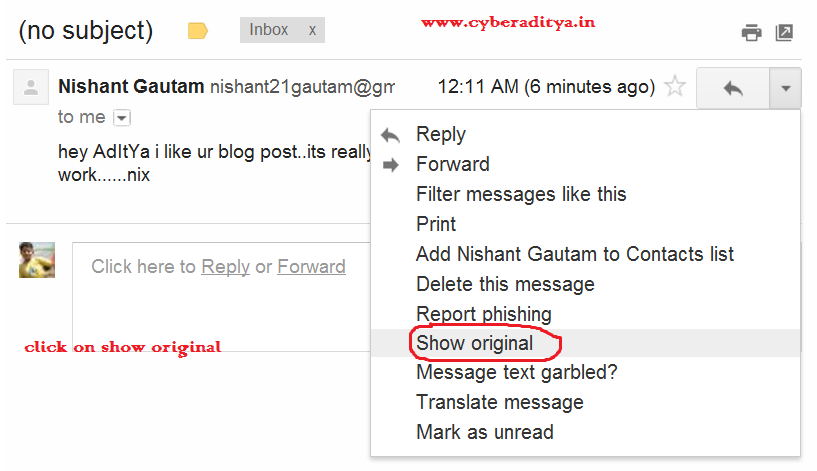
I am taking an example of email which I got from my friend Nishant Gautam 
mail from my friend Nishant || real or fake ??
if you want to check its actual source click on show original as mentioned in below picture
How to check email is fake or real 

the source will look like that 
Real mail source || cyberaditya


check the line " Recieved: from mr.google.com ( that means its real ) 
so the mail I received is real mail not a fake mail .

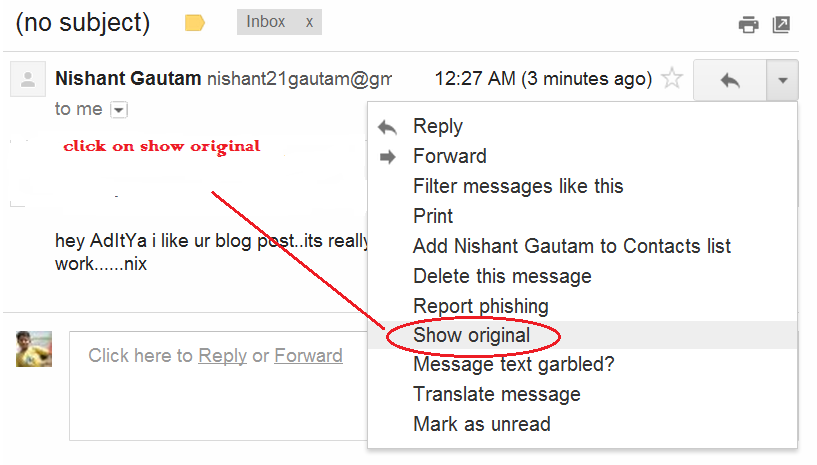
Consider another email 

Its look similar as of previous but it is a fake mail 

How to check whether the email you received is Real OR Fake ? 

click on show original 
How to check whether the email you received is Real OR Fake ? 

the source will open

Fake mail Source || cyberaditya 

Check the line 

Received From : (since its not from mr.google.com) therefore its a fake mail which looks same as Previous Real mail.

These are the simple steps to check whether the mail you got is Real or fake !

Please share this post with your friends to aware them from email spoofing.
thanks for visiting :)
Hello friends in my previous post I had shared a cmd trick that how to open a website using CMD 
but now in this post we will learn how to play audio and video file using the cmd.

To Play Audio file follow the below simple steps :-

Step 1:- Open cmd

Step 2:- type the file path name where your song is saved for example in my case I have saved my one of the favorite song in G:\ drive
  
How to play audio file with cmd || cyberaditya
 
enjoy the song..

To play a Video file :- follow the Step 1 
and type the video path with its extension ( for ex: .mp4 , .mkv , .mov etc) 
how to play video file with cmd || cyberaditya


in my case I am playing a famous video " why this kolaveri di " 

Note :- typing the file extension is necessary.
Hello Friends today I am sharing a very simple CMD trick from which we can open any website with cmd 

follow these below steps :-

Step 1:- Open cmd ( press window + r then type cmd and press enter ) 
open website with cmd || cyberaditya


Step 2:- type " start www.cyberaditya.in " without quotes

open website with cmd || cyberaditya


and press enter. Website will open.

Note :- Replace the domain www.cyberaditya.in to whichever site you want to open 
for example :- start www.google.com

Hello Friends in my previous post I shared a simple trick to improve your internet speed by group policy editing, but now in this post I will share another way to increase our internet speed by using Internet Cyclone. In Simple way we can say Internet Cyclone is a software which will optimize our internet speed 

Lets see how to do that.

Step 1:- Download Internet Cyclone from here

Step 2:- Install the software and run it.
Increase internet Speed with cyclone || cyberaditya


Step 3:- use the browser like Google Chrome to get more speed.

Step 4:- Enjoy the speed.

Hello visitors today I am sharing a very simple trick to speed up your internet speed. Using an internet with slow speed is very irritating for us, but by following these below simple steps we can increase our internet speed...(somehow)

Windows  reserves 20% of your bandwidth for services like updates or spyware checks. If you would like to break this reserve, 

do the following simple steps:

1. Click [Windows] + [R] and type gpedit.msc in the Run window.

How to increase internet speed || cyberaditya


2. Under Computer Configuration expand the Administrative Templates.

3. Go to Network and click the "QoS Packet Scheduler" tab.

4. Double-click on "Limit Reservable Bandwidth" and enable it.

5. Finally change the Bandwidth limit to 0% and click Apply.
How to increase internet speed || cyberaditya


6. Reboot your computer and enjoy.
Hello cyberaditya's visitors first of all thanks a lot for visiting because I am getting unpridicted traffic on my blog within this month only I got the traffic of more than 3417 + visitors..thanks for your support ..

In this post we will learn how to know IP(Internet Protocol) address of our computer as well as of the websites we visits.

How to know IP address of our computer ?

there are many ways to check your IP address of our PC. But since our Blog is about simple cyber post so i will share the easiest method to check..

Method 1 :- open this link in new tab http://www.whatismyip.com/

how to know IP address of our computer || cyberaditya
Method 2:- open cmd and type ipconfig
then press enter
how to know IP address of our computer || cyberaditya

it will display your IP in my case its 117.228.11.41 which is similar with method 1

How to know IP address of any website :-

open CMD and type 


how to know IP address of any website || cyberaditya

replace the www.cyberaditya.in to whichever site U want to know the IP address.

*note* - there are many ways of knowing IP address of any website but I am sharing the Easiest and the fastest way to know.
thanks for visiting my blog, 


simple tips to speed your system performance or speed || cyberaditya

Its to much irritating to use slow computer while your work is more urgent than watching a cursor cycle. So do not worry make your computer faster by performing some simple steps which usually I follow to speed up my PC..

STEP 1:- Remove all the viruses such as Spyware and Trojan

Viruses are computer programs which loves computer to restrict the computer performance there are many computer lovers available on the internet but simple advice to remove all is to use an antivirus generally an antivirus company itself creates several forms of virus so that there product get sale and give profit to there company, if you can not afford a genuine purchased antivirus than no problem try the free anti viruses available on the net such as MSE ( Microsoft Security Essential ) , Kaspersky etc...


STEP 2:- Clean up you disk

It doesn't mean that you should clean your Hard disk with a cloth :P
there are many software's of Disk Clean-up available on the internet such as Tune up utility, Disk Clean-up pro.. etc which will clean your unwanted disk space and hence boost your PC performance. there is also a inbuilt application available in windows called disk clean up to access it open start-->all programs---> accessories ---> system tools----> Disk Cleanup.


STEP 3:- Delete temporary files

Delete all the temporary files present on your PC to improve system speed because temporary files covers space which reduces your PC speed. To delete Temporary files go to start-->Run-->then type
"%temp%" without quotes and then press enter it will open all the temporary files then select all the temporary files and Delete it.

STEP 4:- De fragment your hard disk

when we delete some files from our computer hard disk some bytes of files still get left and combines to form several megabytes. De fragmentation is the process of removing such files from the hard disk.As windows has provided inbuilt de fragment tool so no need to go for third party.

to de fragment :--

go to --->start--->all programs---> accessories--->system tools--->disk de fragment ---> then select the disk which you want to defrag wait for some hours... because it is very slow process.


STEP 5:- Use Ready boost

ready boost is and excellent software which will boost you PC speed by 1 pen drive download this software and if you are using window 7 then no need to download it. it is already installed in window 7 operating system.

these are some very simple tricks and tips which will increase your system performance  please like and share this post on Facebook, thanks for visiting.
Tips to secure you facebook account from being hacked || cyber@ditya


Hello Cyber@ditya's visitors as we all know facebook is now become our one of the most important part of our cyber life.. :P
so preventing our Facebook account from hackers is better than to regret and unsafe,, below are some very useful tips to secure your Facebook account from being hacked


do not use facebook from cyber cafe and from wifi of others...

           try to reduce or stop using facebook from remote area cyber cafe and from other wi-fi because it can contain Keylogers ( these are those programs or softwares which record all your keystrokes ) 

Change your password in every 10 -15 days
             try to change your account psswd in every 10 to 15 days and do not use password as your mobile number ,date of birth,your own name etc.,.

Connect your mobile with facebook
       facebook has a very good feature to update and see post with the facebook mobile.. subscribe your mobile and if the psswd is changed or login by another computer than you will receive a msg from facebook team.

Facebook asks your facebook username and password only when you log in to it. They won’t ask it to you through mail – If you get any such mail, make sure that they are dumped in your spam folder

Newer give your Email account an password to any other site and if it is redirecting make sure that it is redirecting only to Facebook .com

Newer use application which want your password for verification

Never click on any suspecious links sent to you by strangers, even if you have a short term online relation with him/her (most probably, that will be a her 

do not click on any unsafe video link . Remember that these kind of uncultured / unscientific / unnatural words or posts are originated as a result of some malware codes and your friend may be a victim of such an attack. Try to keep away from such links or posts

these are some very useful tips which can secure your Facebook account from being hacked plz.. follow my blog on facebook and twitter if u liked it ..thanks ..
How to know full form of any term ||by cyber aditya
Hello visitors this is my first post after purchasing my own domain....

today i gonna share a simple but useful website from where u can find full form of any short form ..

no need to Google every time ..


Step 1 ||by cyberaditya


step 2:- type any short form of which U want full form ..
for example : in my case it is TCP


step 2 || by cyberaditya
then press enter.. u will get the full form(i.e 'Transmission control protocol 'in my case) within a few second..

the best part is that u also get the info about the term ..
thanks for visiting my blog.. 


hope u liked it :)
plz.. like and share my fb page :)
How to disable/enable USB port || Cyber @ditya

hello visitors.. today I m going to share simple windows hacking which is useful for college as well as school going student as well as for lab in charge..
As we all know that when we are @ college or @ school when we go to computer lab .. the USB port is dissabled by the admin.. to prevent system from viruses .. but the admin doesnt knows that the students are more smarter..
 HOW TO DISABLE/ENABLE A USB PORT..


Step1: In Windows 7  press Windows key+R and type as “regedit
open regedit || Cyber @ditya

Step 2: It will open the Registry Editor of  your Windows 


regedit editor || Cyber @ditya


Step 3: After opening Registry edit browse the following path in reght side bar of registry editor

The Path to go: 

“HKEY_LOCAL_MACHINE\SYSTEM\CurrentControlSet\Services\USBSTOR”

Step4: Then right click the registry “Start” which is rectangled in red color in 

the below screenshot of registry editor
Step 4 || Cyber @ditya

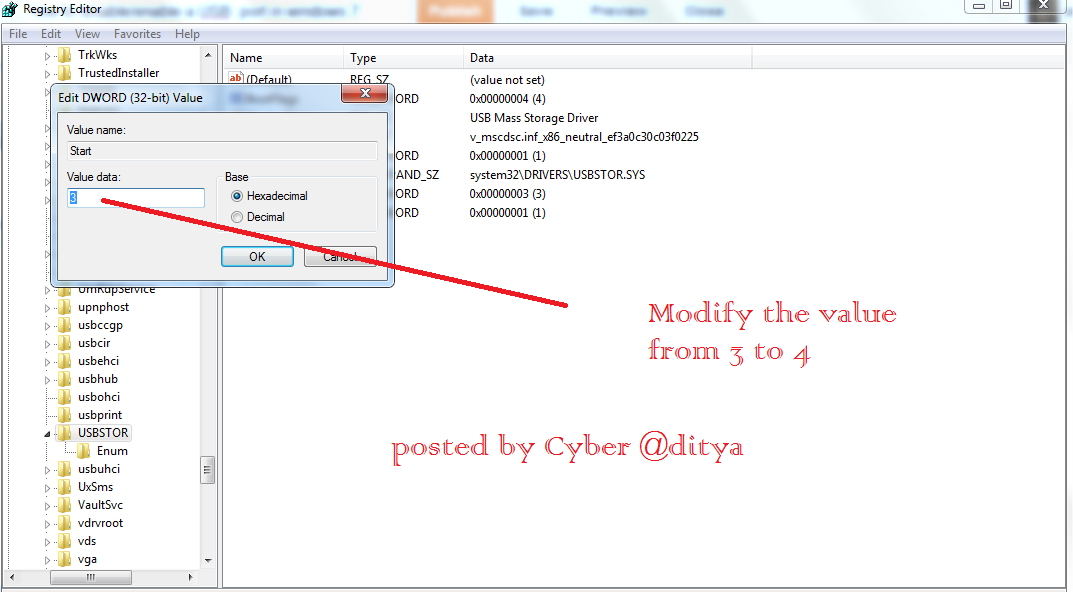
Step:5 Right Click “Start” and Click modify
  • To enable USB ports: change the value from “4″ to “3″
  • To disable USB ports: change the Value for “3″ to “4″

Modify the value || Cyber @ditya


thats it.. thanks for visiting my blog.. plz.. like and share me on FB if u liked it...

NOTE :- this post is for Educational Purpose only.. ( never try this @ ur College or School :P )

Copyright © 2012 cyberaditya.